
ENTRY DEVICE DEMO
Watch the Entry Device in action
See how a scan records attendance and sends an update to a parent or supervisor. The videos show WhatsApp delivery. You can also configure email or both for individual recipients.
What the demo shows
- Reader scan
- Attendance event
- Recipient update
Entry demo for office check-ins
A 50-second view of face and fingerprint verification, a supervisor’s update and the check-in details.
English narration · 50 seconds
Captions are available through the player’s caption controls.
Illustrative fingerprint and scanner-screen animations are combined with AI-generated adult office scenes. The notification uses fictional example details. Device compatibility and available capture photos must be confirmed for your installation.
Read the demonstration transcript
Every arrival matters. Face or fingerprint verification. Your compatible access device records the entry. A verified arrival.
EntryLuma sends a WhatsApp notification to your selected recipient. See the name, location, date and time. Include an available capture photo, or choose a notification without one.
Connect a compatible device. Configure the local connector. Add recipients and your API key. Test, confirm and go live. Protect credentials and review activity.
EntryLuma. Connect your entrance. Keep your people informed. Visit entryluma.com.
A CLOSER LOOK AT THE SERVICE
Choose your language.
Our animated product tour explains the connection, notification layouts and setup. Select a language before playing.
English narration and on-screen text · Approximately 2 minutes
Animated examples illustrate possible workflows. Notification timing and photo availability depend on device events, connectivity and the configured channel.
YOUR MESSAGE, YOUR PRESENTATION
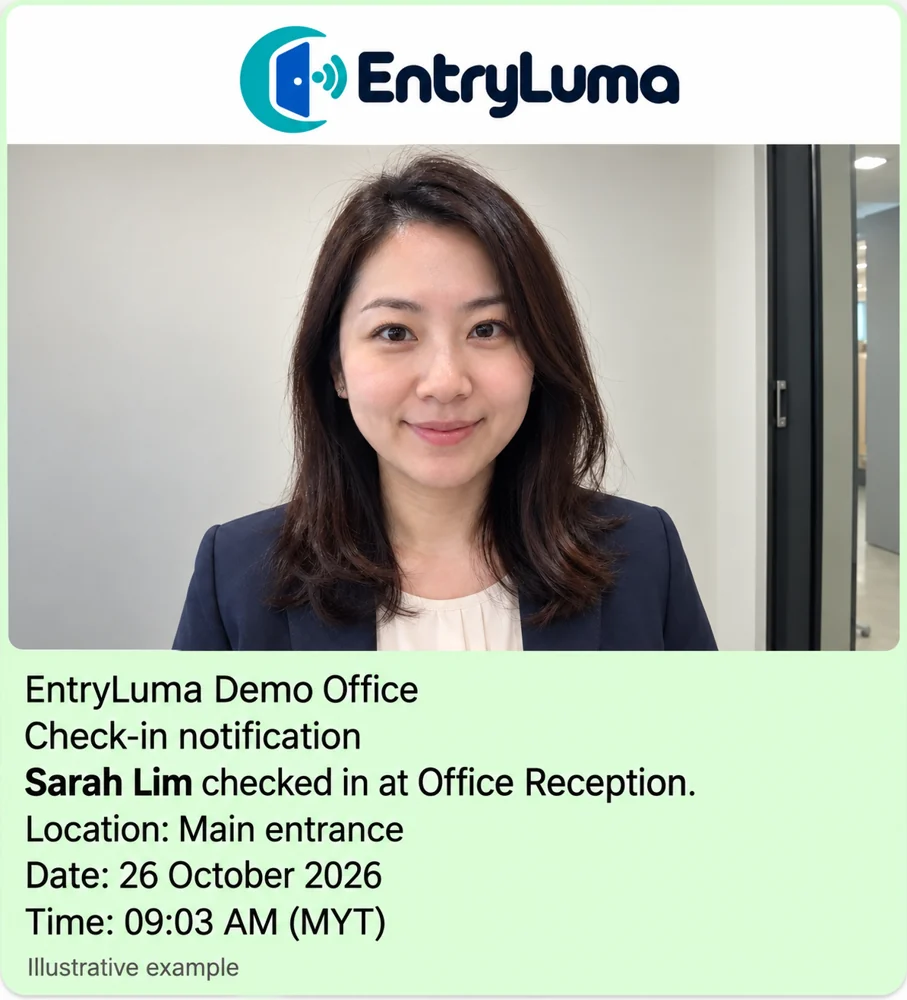
WhatsApp notification layouts shown in the demo
Use your organisation’s logo, notification text and an available capture photo in the combination that works for your recipients.
- Text Only
- Logo + Text
- Picture + Text
- Logo + Picture + Text
Fictional adult office example. Photo layouts require a usable image from the supported device.
ENTRY NOTIFICATION SETTINGS
Choose how each person’s recipient gets notified
Set WhatsApp, email or both for each Access User. The recipient can be the user, a parent or another nominated contact.
- In the dashboard, open Access Users and add or edit the person.
- Enter the recipient’s WhatsApp number, email address or both. Set Notification delivery to WhatsApp, Email or WhatsApp + email, then save.
- Under the branch’s Entry notification settings, enable Notify person notification recipient and select the events to notify.
- Run a test scan and check Email delivery or the WhatsApp delivery log for the result.
Email requires the portal’s email service to be enabled. WhatsApp requires a configured WhatsApp connection. The branch recipient delivery setting controls branch recipients separately.