Draw the areas that matter
Mark up to eight zones on each camera view. Set the areas that must be occupied or empty, and leave the rest out of the rule.

ENTRYLUMA CCTV
Know when a customer is waiting at an unattended counter, someone is in a restricted area, or there’s activity inside after closing. Send the people who can respond a WhatsApp or email alert.
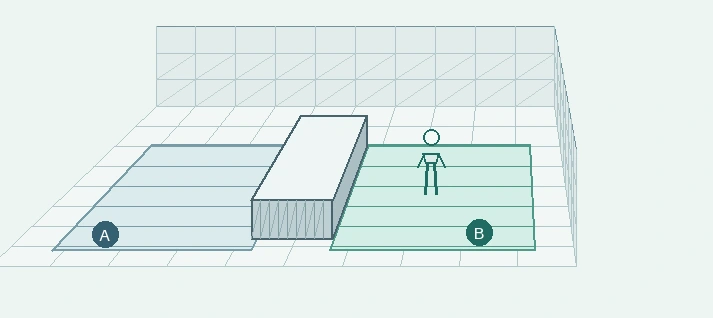
Notify the manager if both conditions hold for 30 seconds.
See how the Entry Device works →
EXAMPLE CAMERA LAYOUTS
Try different conditions in each wireframe. The two examples use separate cameras, with one rule per camera.
Conditions Staff zone A stays empty and customer zone B stays occupied for 30 seconds during operating hours.
Result Notify the manager. If either condition changes before the delay ends, the timer resets.
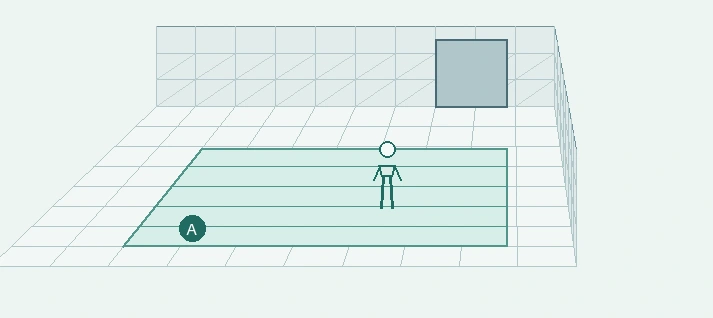
Conditions A person is detected in restricted zone A during the scheduled 10 pm to 7 am window and the rule’s configured delay is met.
Result Send the site team a presence alert, with an optional snapshot for review.
CAMERA DETECTION & ALERTS
Mark up to eight zones on each camera view. Set the areas that must be occupied or empty, and leave the rest out of the rule.
Choose active days and hours, date exceptions, how long the conditions must hold, and a cooldown between alerts.
Choose WhatsApp or email recipients. Add an optional snapshot or branch logo and configure a follow-up when the condition clears.
Check CCTV device connection status, review event timelines and delivery outcomes, and filter or export CCTV reports by date, branch and camera.
USE CASES
Set a rule for the situation your team wants to respond to.
Retail & reception
Send an alert when the waiting area stays occupied and the staff side stays empty for 30 seconds. Use the same pattern for a reception desk or tuition pickup point.
Staff-only spaces
Alert when someone is detected in a staff-only storeroom, behind a counter or in another area that should be empty.
Shops & offices
Run the rule during closed hours and alert when someone is detected inside. Set different days or date exceptions for holidays.
Rear entrances
Alert on unexpected presence inside the premises after closing. An optional snapshot gives the manager something to review before deciding how to respond.
Entrances & shutters
Alert when a marked area near a shutter or side entrance stays occupied beyond the chosen delay. This measures how long the area stays occupied.
Warehouses & loading bays
Notify a supervisor when someone is detected in a marked loading lane during scheduled operating hours.
HOW IT WORKS
A compatible camera provides snapshots of the selected view.
The local Windows connector detects people and checks your zone conditions, schedule and delay.
The dashboard logs the event for activity review and reporting.
EntryLuma routes the configured WhatsApp or email alert, with a snapshot if enabled.
BEFORE YOU START
EntryLuma supports selected Hikvision IP cameras with snapshot access and compatible Windows webcams. Share the model and installation details so we can check your setup.
The current connector supports one alert rule per camera, with conditions across up to eight zones. Separate rules such as an unattended counter by day and after-hours presence by night need separate cameras with the current connector.
It estimates whether people are present in configured zones using sampled images. Staff review the context to determine whether a person is authorised or whether an incident occurred. Lighting, camera angle and obstructions affect detection, and brief activity between snapshots can be missed.
Email alerts can be configured independently. WhatsApp delivery uses WebWMS2U and requires a compatible sending setup.
PLAN A CCTV DEMO
Share your camera model, site hours and who should receive the alert.
WHATSAPP DELIVERY
See how reader events and camera alerts pass through EntryLuma processing to the configured WhatsApp delivery route.